
Installing and Logging into the Plugin
The Shale plugin is installed through Blender’s built-in Extensions system. You’ll need a Blender 4.xx version.
Blender Plugin Link: https://plugins.shalereview.com/blender/index.json
- Open Blender and go to Edit → Preferences
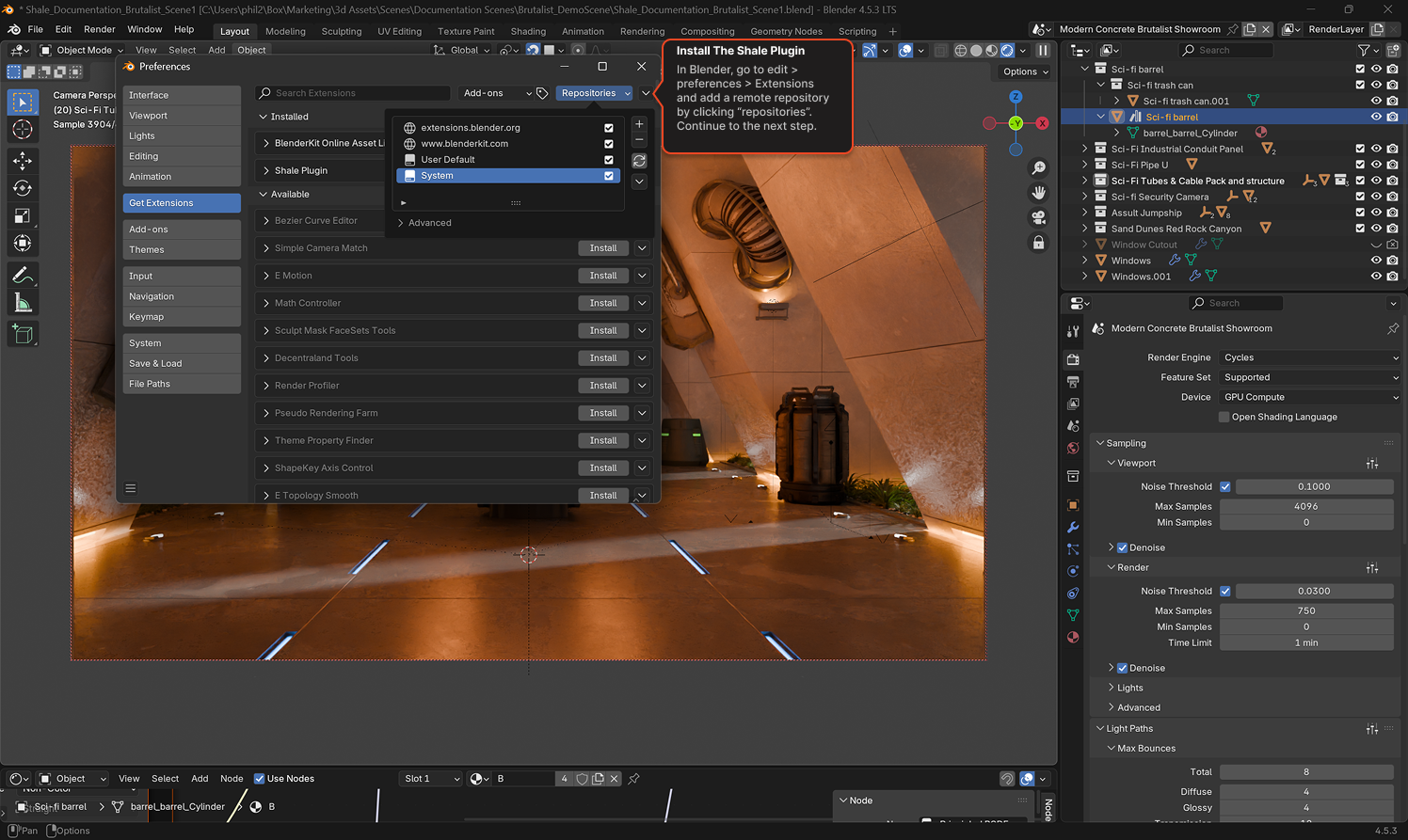
- In the left sidebar, click **Get Extensions
- Add a remote repository using the above link,
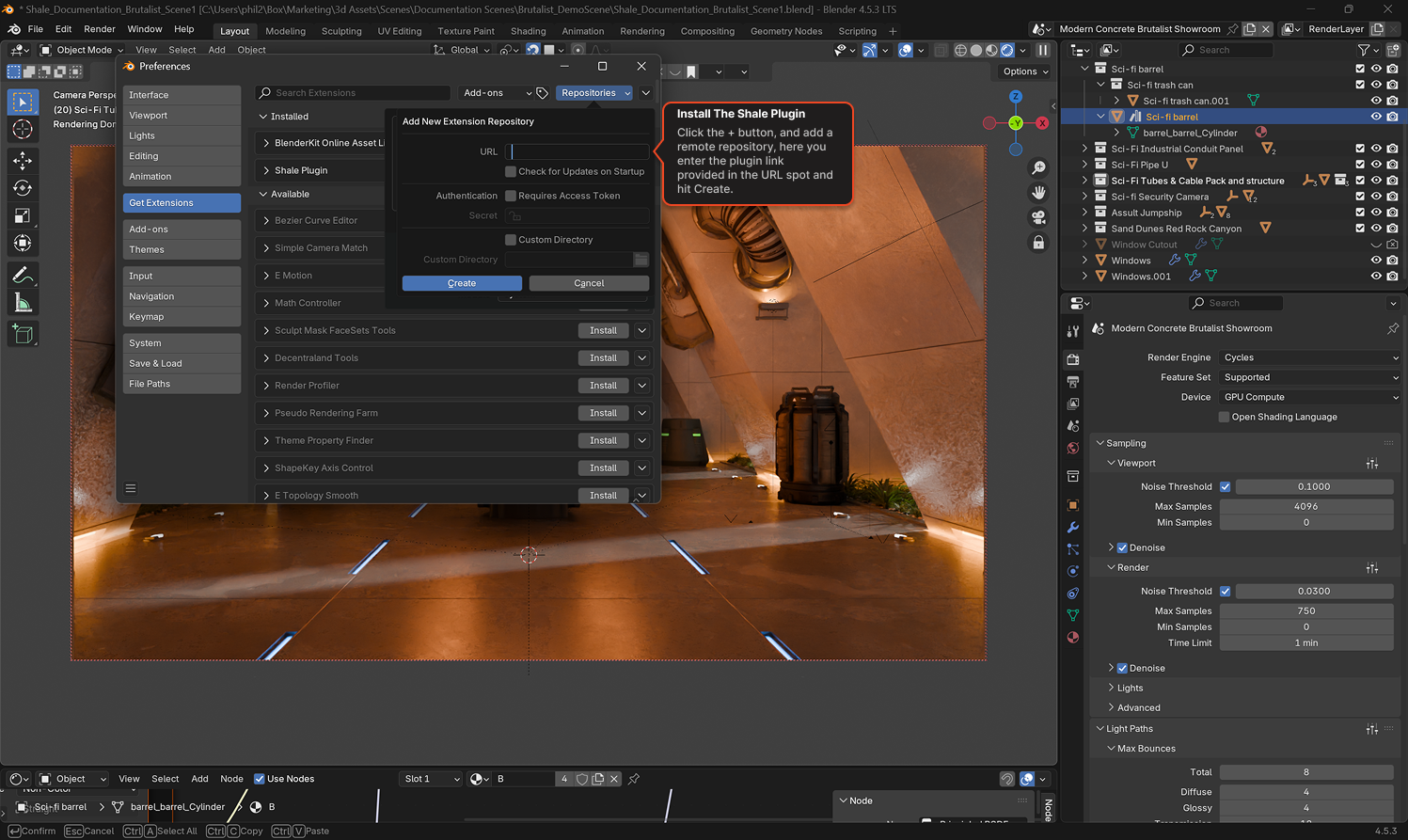
Once installed, Shale Plugin will appear under the Installed section of your Add-ons list.
After installation, the Shale panel is available in the 3D Viewport sidebar (press N to open it if it’s not visible) under the Shale tab.
Logging In
Section titled “Logging In”- Open the Shale panel in the 3D Viewport sidebar (
Nkey)
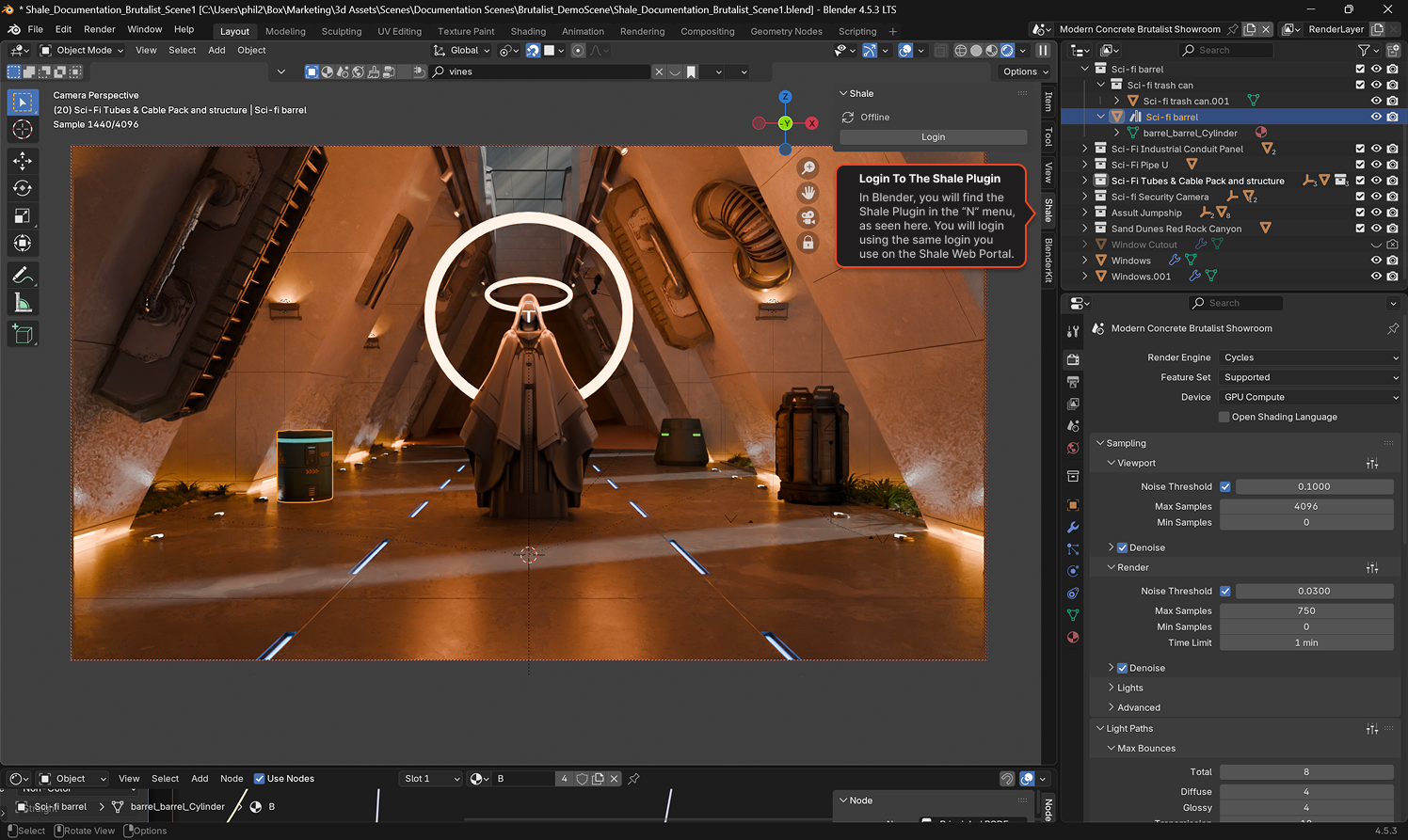
- If you’re not logged in, the panel will show Offline with a Login button
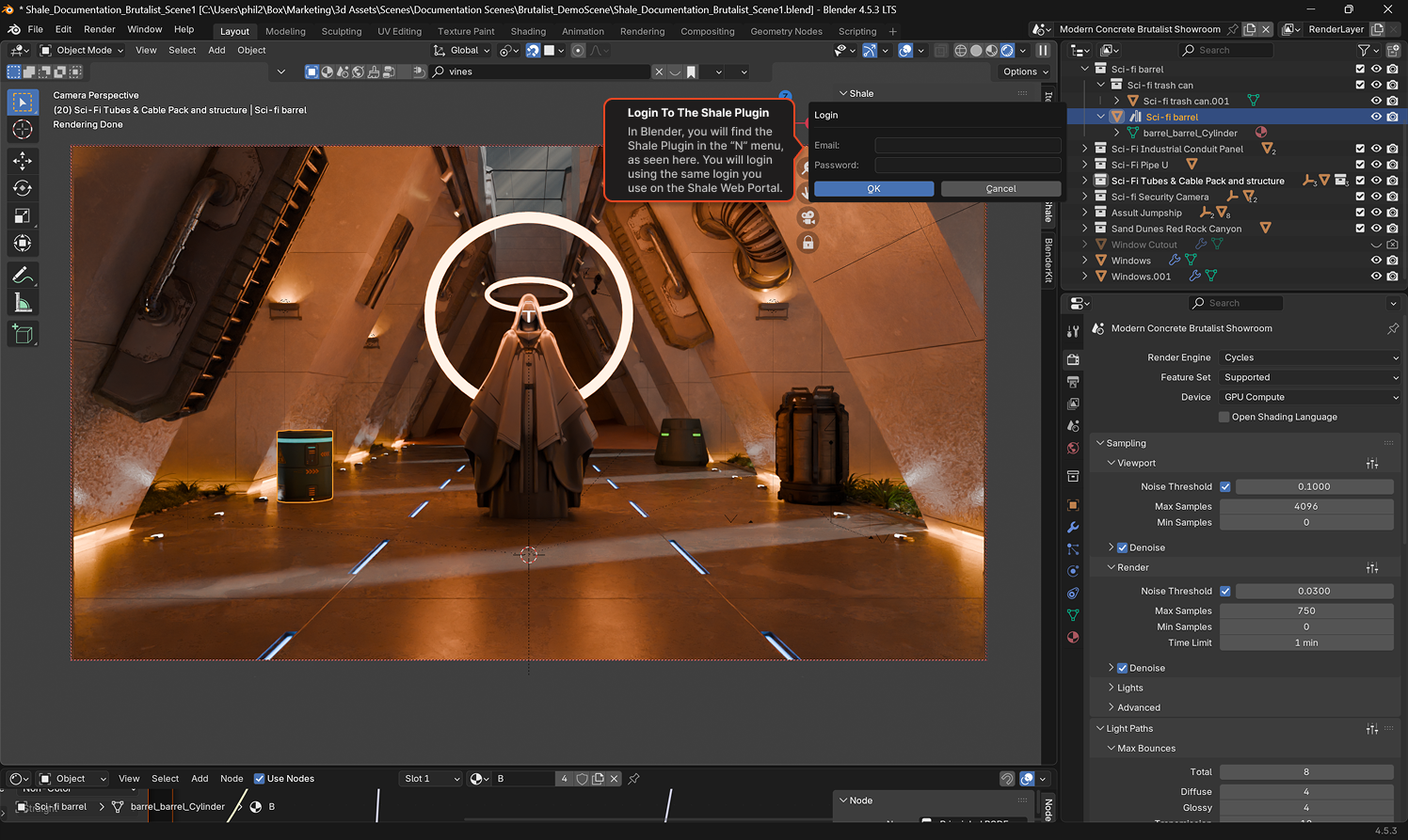
- Click Login — a dialog will appear asking for your Email and Password
- Enter your Shale credentials and click OK
- The panel will connect to your account and show your available organisations.